
User Cache File Server Deployment Guide
This guide details the complete deployment process for the User Cache File Server, covering binary download, config.yaml configuration, service startup (foreground/background/systemd), web admin management, and FAQs, helping you quickly set up a self-hosted file upload/download service based on API Key authentication.
User File Server Deployment Guide
This service is a lightweight file upload/download server that supports file management via API Key authentication and provides a web admin backend.
---
1. Download Binary File
Select the version according to the server's CPU architecture:
| Architecture | Download Link |
|---|---|
| x86_64 (amd64) | user-file-manager-server-linux-amd64 |
| ARM64 | user-file-manager-server-linux-arm64 |
Check server architecture:
uname -m
# x86_64  → download amd64 version
# aarch64 → download arm64 version

---
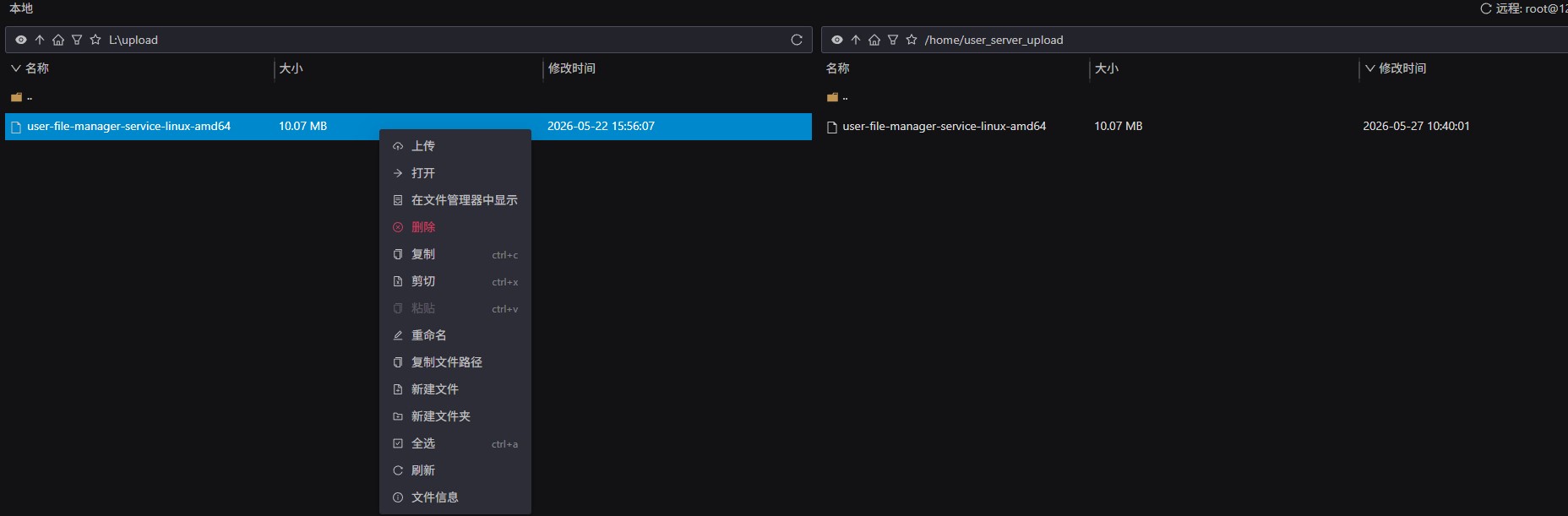
2. Upload to Server
Upload the downloaded binary file to the server, for example to the /opt/file-server/ directory:
# Create directory
mkdir -p /opt/file-server
# After uploading add execute permission
chmod +x /opt/file-server/user-file-manager-server-linux-amd64
---
3. Create Configuration File
Create config.yaml in the same directory as the binary:
touch config.yaml
The configuration file content is as follows:
server:
  port: 8080
  server_id: "self-hosted"

auth:
  api_key: "your-secret-api-key-here"   # Must be changed, at least 16 characters
  admin_username: "admin"               # Admin backend login account, leave empty to auto-generate on first start
  admin_password: ""                    # Admin backend login password, leave empty to auto-generate on first start

storage:
  upload_dir: "./uploads"               # File storage directory, relative or absolute path allowed

log:
  level: info                           # Log level: debug / info / warn / error

cors:
  allowed_origins: []                   # Allowed front-end domains for CORS, leave empty to allow all origins
  # Example (restrict specific domains):
  # allowed_origins:
  #   - "https://your-frontend.com"
Configuration Parameter Description
| Parameter | Type | Must Modify? | Description |
|---|---|---|---|
server.port | int | No | Service listening port, default 8080 |
server.server_id | string | No | Node identifier, used for differentiation in multi-node deployments |
auth.api_key | string | Yes | API authentication key, minimum 16 characters, required when calling upload/download APIs |
auth.admin_username | string | No | Admin backend account, leave empty to auto-generate on first start and print to console |
auth.admin_password | string | No | Admin backend password, leave empty to auto-generate on first start and print to console |
storage.upload_dir | string | No | File storage root directory, default ./uploads |
log.level | string | No | Log level, default info |
cors.allowed_origins | list | No | CORS whitelist, leave empty to allow all origins |
---
4. Start the Service
Foreground Running (for debugging)
./user-file-manager-server-linux-amd64
# ARM64 version:
./user-file-manager-server-linux-arm64

On first start, if no admin credentials are configured, the console will print auto-generated credentials:
Admin credentials generated
Username: admin
Password: xK9mP2qR
Saved to config.yaml
Please keep them safe; they can be viewed or modified later in config.yaml.Background Running (production environment)
nohup ./user-file-manager-server-linux-amd64 > server.log 2>&1 &
View running logs:
tail -f server.log
Stop the service:
# Find process PID
ps aux | grep user-file-manager-server
# Stop
kill <PID>
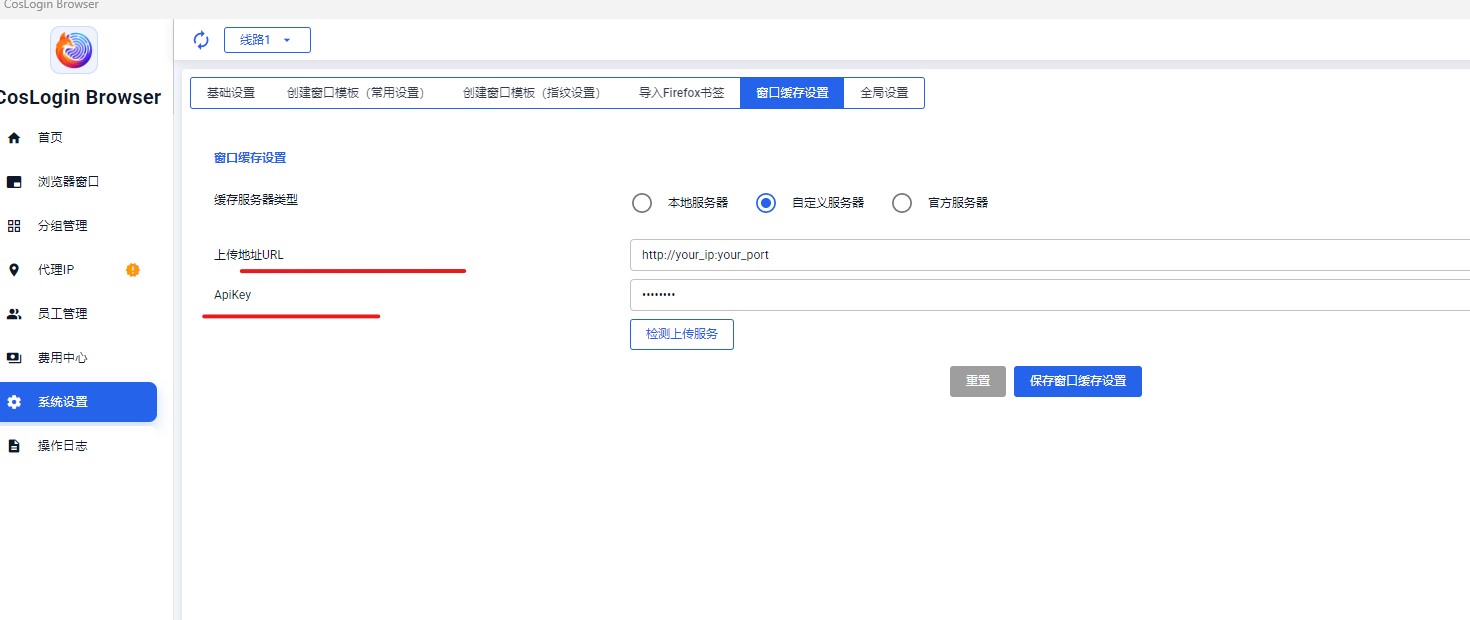
Then you can configure the upload address URL and ApiKey in the fingerprint browser's window cache settings -> Custom Server -> Add
Manage with systemd (recommended)
Create service file /etc/systemd/system/file-server.service:
[Unit]
Description=User File Manager Service
After=network.target

[Service]
Type=simple
WorkingDirectory=/opt/file-server
ExecStart=/opt/file-server/user-file-manager-server-linux-amd64
Restart=on-failure
RestartSec=5

[Install]
WantedBy=multi-user.target
Enable and start:
systemctl daemon-reload
systemctl enable file-server
systemctl start file-server
systemctl status file-server
---
6. Admin Backend
Access the web admin backend:
http://your_ip:8080/admin/login
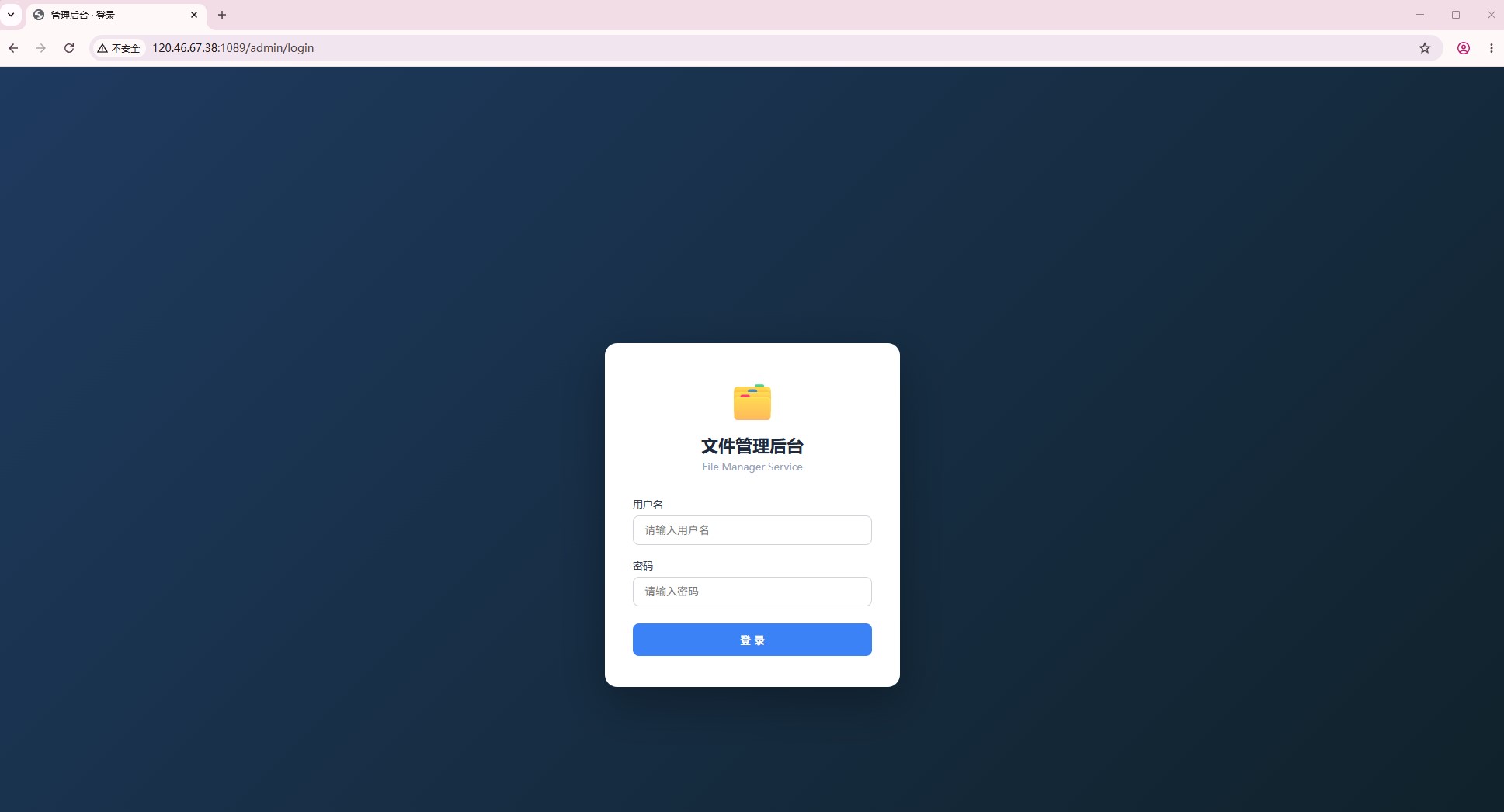
Log in using the admin_username / admin_password configured in config.yaml.
Backend features:
- View list of uploaded files
- Delete files
- View disk usage
---
---
7. FAQ
Q: Startup error api_key must be at least 16 characters
The auth.api_key in config.yaml is less than 16 characters; please change it to a longer key.
Q: Upload returns 401
The request header is missing X-API-Key, or the key value does not match the configuration file.
Q: Upload returns 400 invalid file type
Currently only .zip files are accepted.
Q: How to change the storage directory
Modify storage.upload_dir in config.yaml and restart the service for changes to take effect. Both relative paths (relative to the binary location) and absolute paths are supported.
Q: How to enable CORS support
Modify cors.allowed_origins, fill in the front-end domain, or leave it empty to allow all origins:
cors:
  allowed_origins:
    - "https://your-frontend.com"