
Clear Browser Cache
If you need to clear a browser’s cache, follow the steps below:
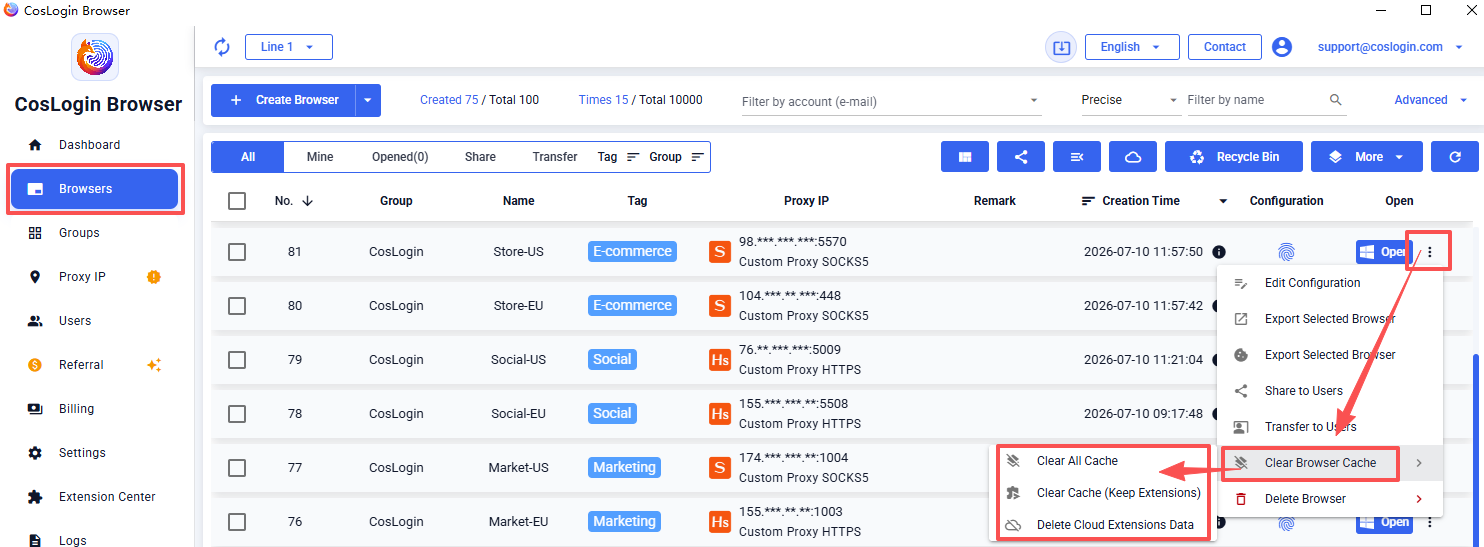
Single Browser:
Go to [Browser] in the left sidebar -> Click the [⋮] next to the browser you want to clear -> Choose [Clear Window Cache].
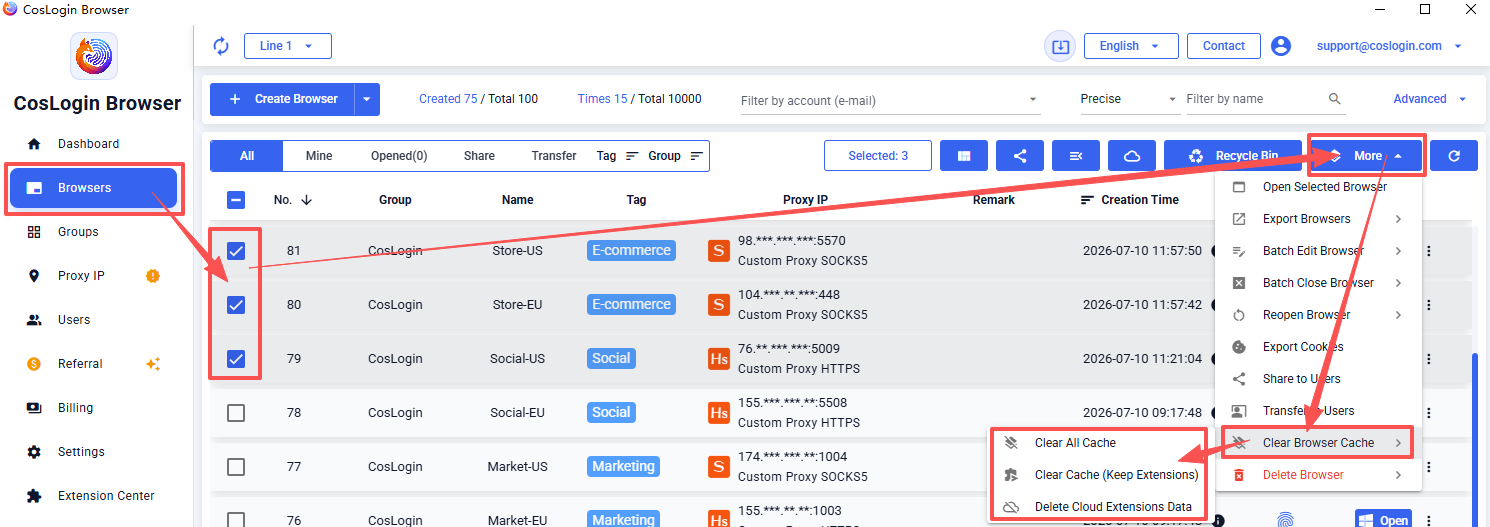
Multiple Browsers:
Go to [Browser] in the left sidebar -> Select the browsers whose cache you want to clear -> Click [More] in the upper-right corner -> Choose [Clear Browser Cache].
Cache Clearing Options:
1. Clear All Cache
- Clears all cached data for the selected browsers.
- Browser sign-in sessions, cookies, local cache, and other browsing data will be removed. You will need to sign in to websites again.
2. Clear Cache (Keep Extension)
- Clears all cached files except browser extensions and extension data.
3. Delete Cloud Extension Data
- Deletes the extension data cache stored in the cloud.
- After deletion, extension data can no longer be synchronized when you sign in to the software on another computer.
- The "Sync Extension App Data" option for the selected browsers will also be turned off automatically.