MangoProxy Settings
Follow these steps to get a Static ISP proxy from MangoProxy and connect it to a CosLogin browser profile. The guide covers proxy settings, the connection check, and launching the configured browser.
Step 1: Get a MangoProxy Static ISP Proxy
Log in to your MangoProxy account or register a new one. From the left menu, expand Static proxies and select ISP.
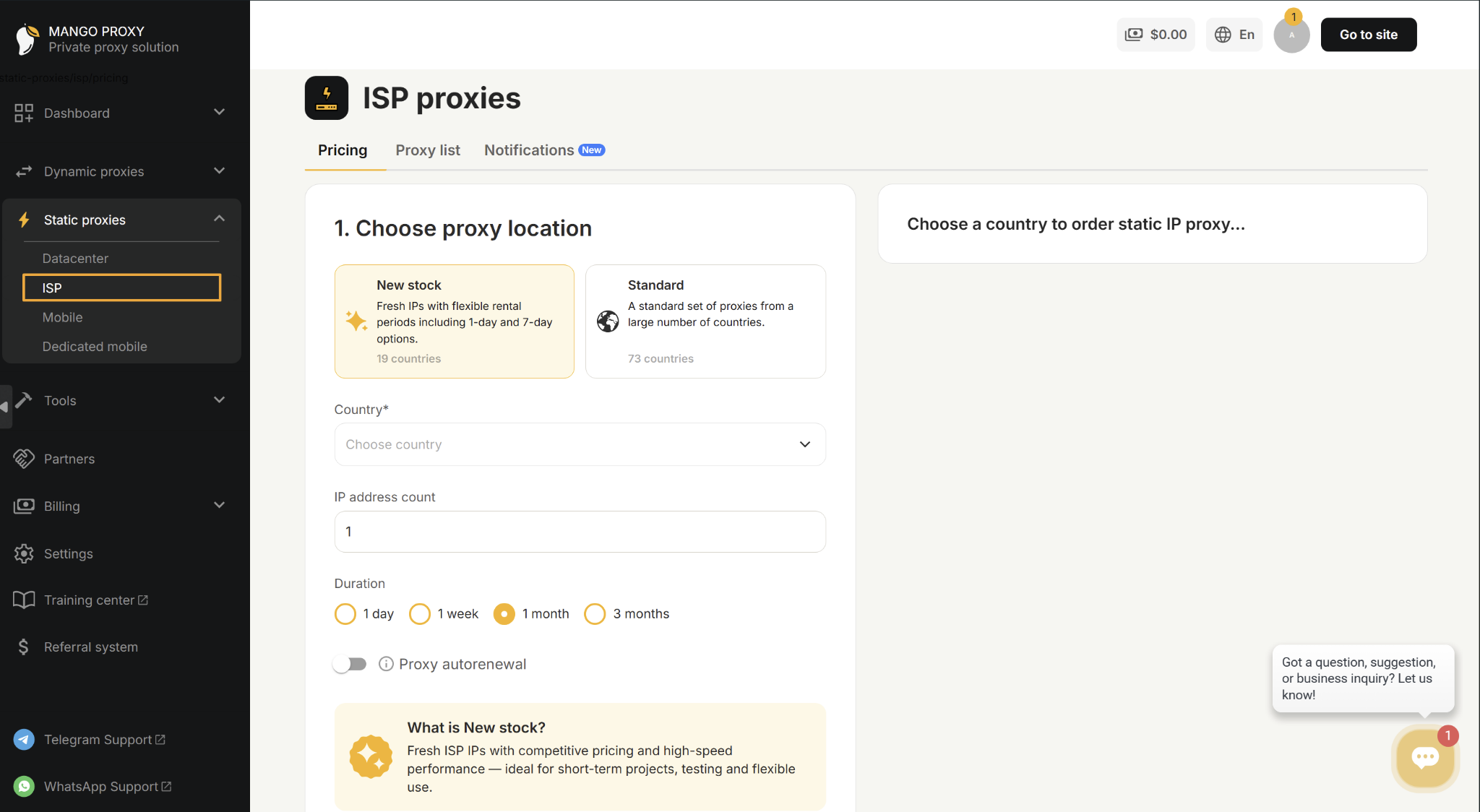
Alt: MangoProxy dashboard with ISP selected under Static proxies
Choose New stock or Standard. Choose a Country and, if the Provider field is available, pick a provider. Enter the number of proxies in IP address count and select a rental period under Duration.
Check the order details in Order Summary. Click Checkout when you are ready to place the order.
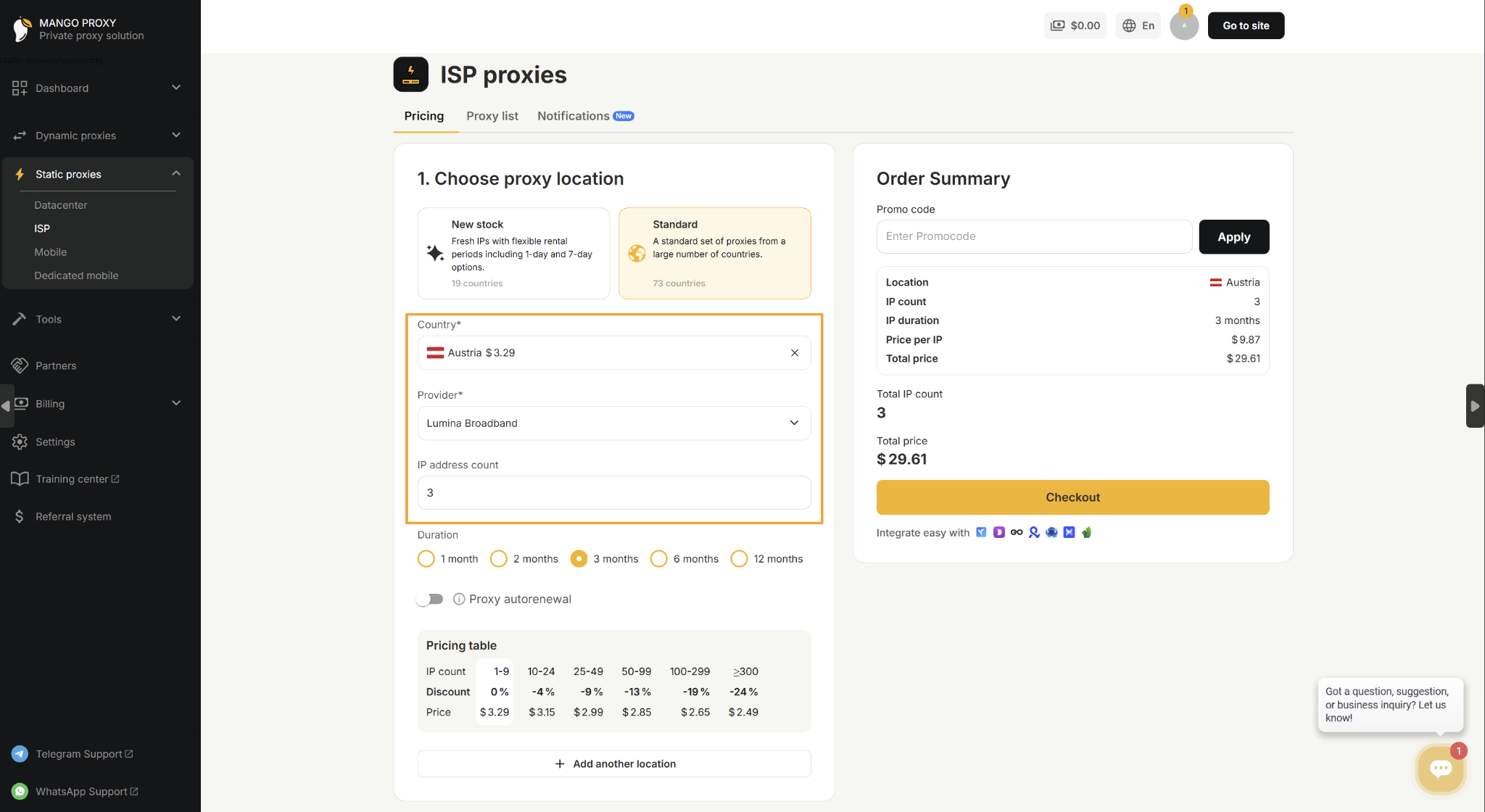
Alt: MangoProxy ISP proxy order form with country, provider, IP count, duration, and Checkout
Step 2: Have Your Proxy Details Ready
Have your proxy connection details ready before you open the settings in CosLogin. You will need:
- Host or IP address
- Port
- Username
- Password
- Proxy type
Use the type specified for your MangoProxy connection. This guide uses SOCKS5 with IPv4.
Keep these details available so you can copy each value into its corresponding field.
Step 3: Open CosLogin and Create a Browser
Install the CosLogin desktop application before continuing if it is not already on your computer. Open CosLogin and sign in.【Free to Use】
Go to Browsers in the left menu. Click Create Browser to open the setup panel.
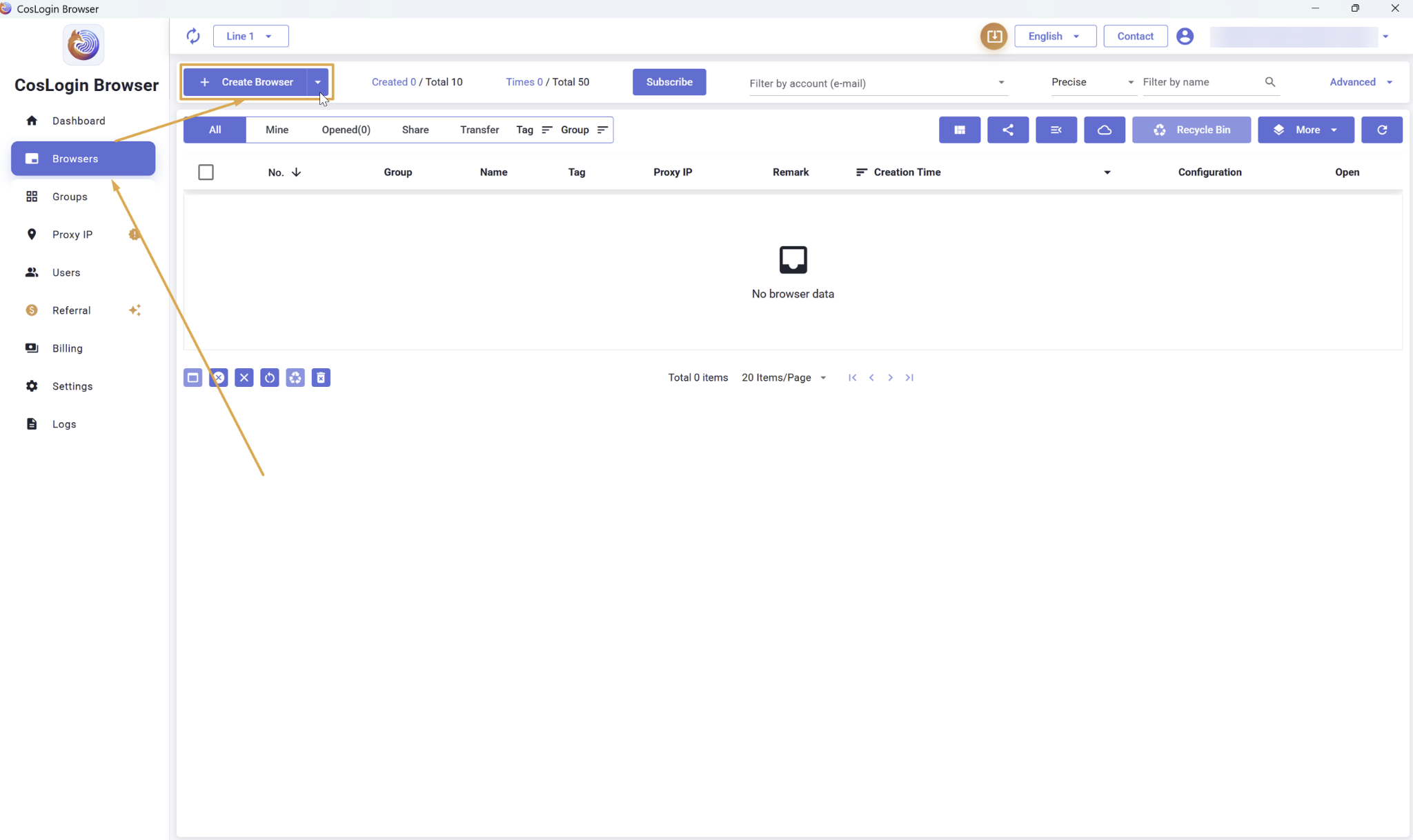
Alt: Browsers section in CosLogin with the Create Browser button highlighted
Step 4: Give the Browser a Name
In Basic, fill in the Name field. Choose a name you will recognize in the browser list.
For this example, we use Browser Test.
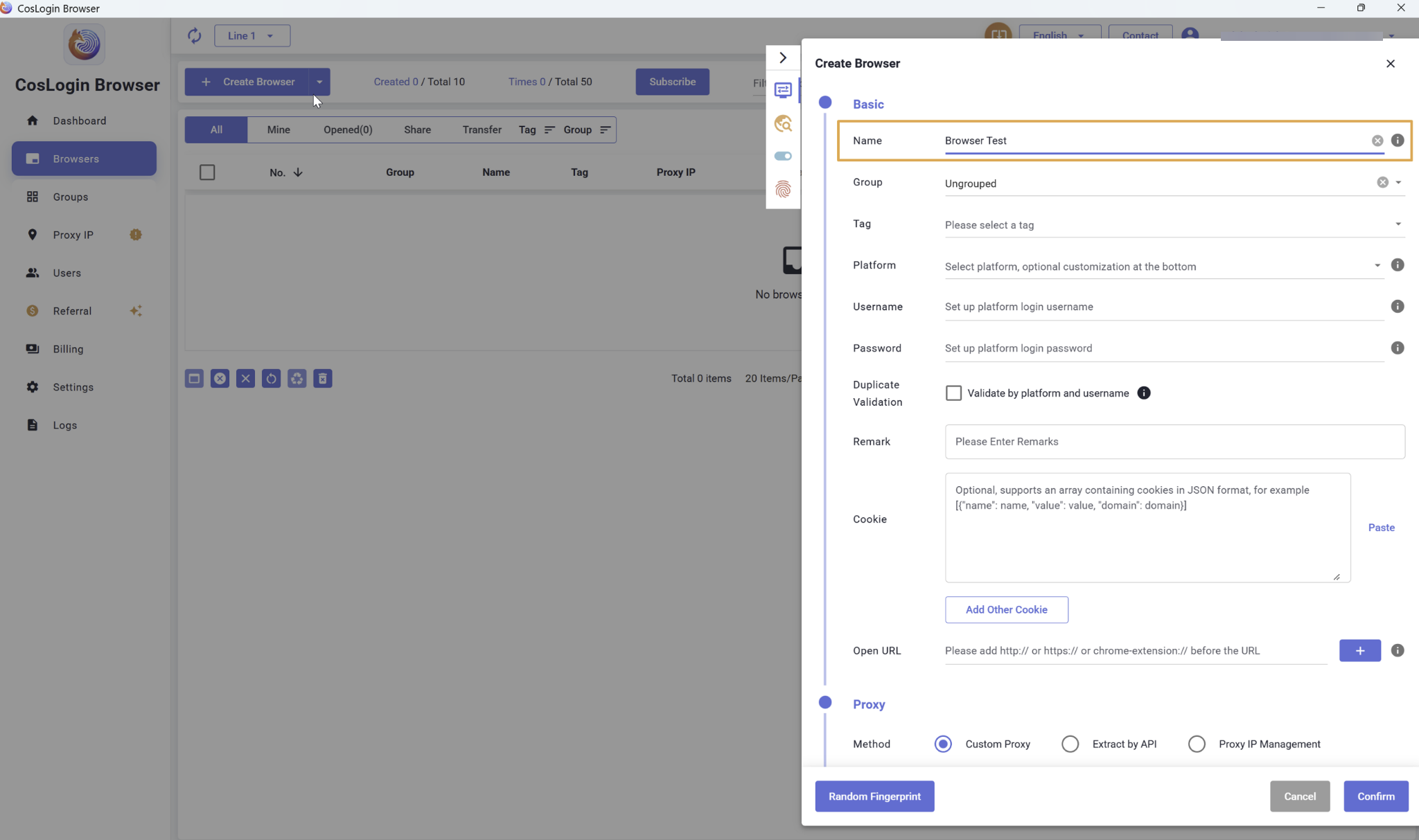
Alt: CosLogin browser Name field filled with Browser Test
Step 5: Select Custom Proxy
Scroll down to the Proxy section. Under Method, select Custom Proxy.
Set Type to match your MangoProxy connection details. Our example uses SOCKS5 for Type and IPv4 for Protocol.
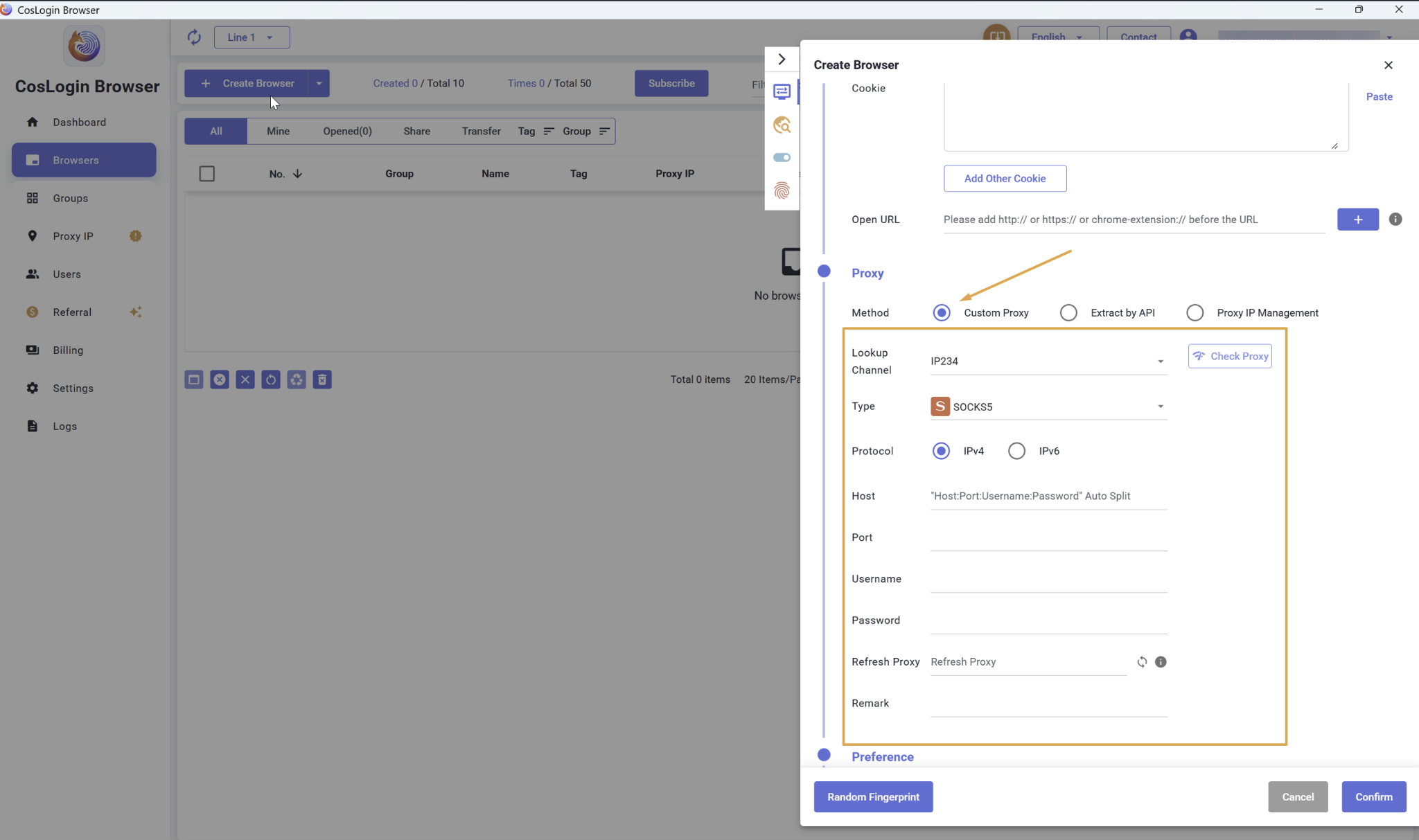
Alt: CosLogin Proxy settings with Custom Proxy, SOCKS5, and IPv4 selected
Step 6: Enter the MangoProxy Proxy Details
Fill in the four connection fields separately:
- Host: paste the proxy host or IP address.
- Port: enter the port supplied with the proxy.
- Username: enter your proxy username.
- Password: enter your proxy password.
Use the credentials supplied by MangoProxy for this connection. Check that each value is in the correct field before testing the proxy.
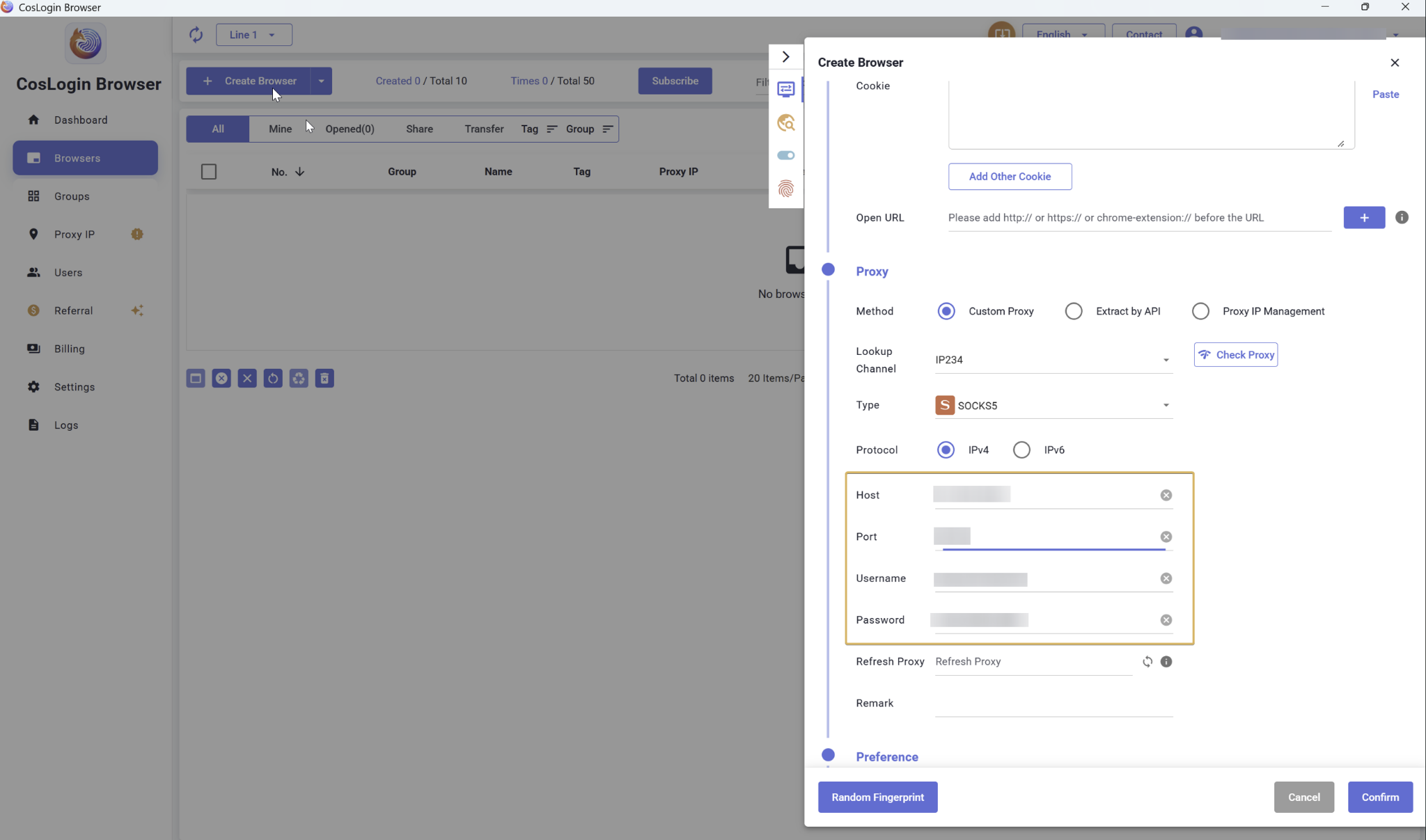
Alt: CosLogin Host, Port, Username, and Password fields filled with masked MangoProxy details
Step 7: Check the Proxy Connection
Click Check Proxy. When the connection succeeds, CosLogin displays the green Proxy check successful message.
The results panel shows the detected IP address and location details, including Country/Region. Compare the detected Country/Region with the location of your MangoProxy proxy.
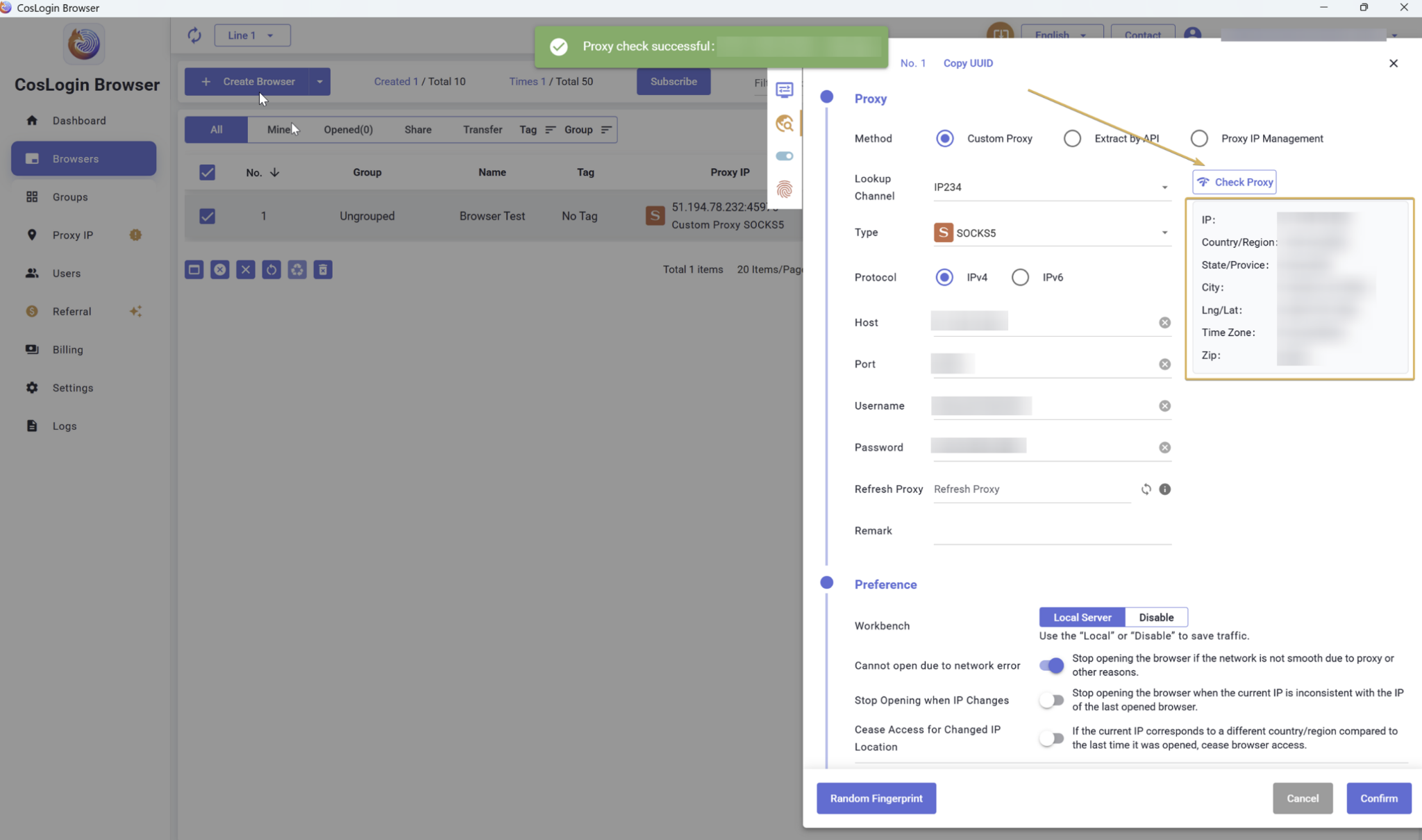
Alt: CosLogin showing Proxy check successful and the IP and location results panel
Click Confirm to save the settings.
Step 8: Open Your Browser Profile
In Browsers, find the profile you saved. In this example, it appears as Browser Test.
Click Open on that profile’s row and wait for the browser window to launch.
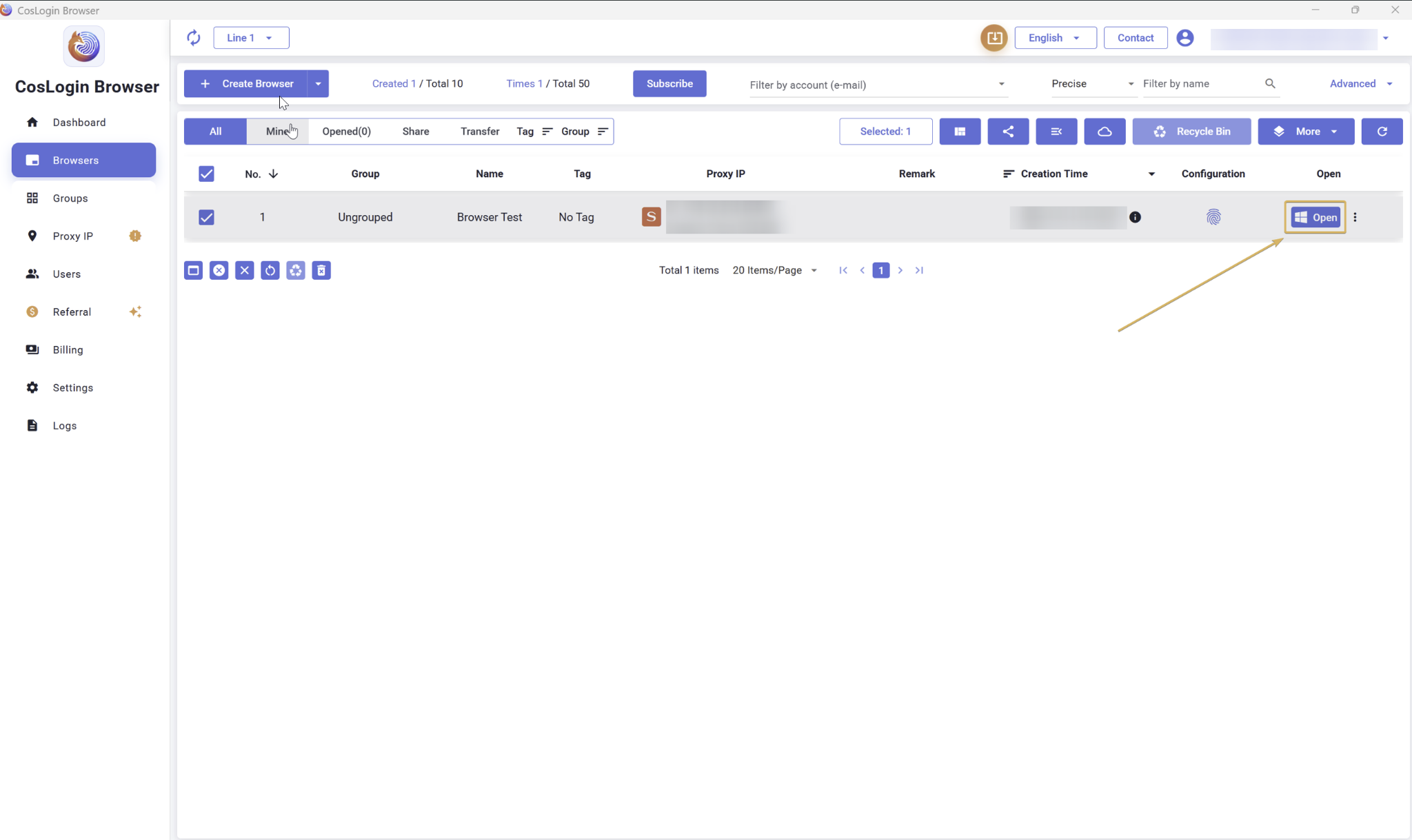
Alt: Browser Test profile in CosLogin with the Open button highlighted
The profile is now configured to browse through your MangoProxy connection.